htmlintermediatemitFeatured
Password Toggle Input
A password field with a show/hide eye toggle.
3.4k1.1k255195
About this module
A password input with an eye icon that reveals or hides the value — a UX must-have for auth forms.
#input#form#password#auth#toggle
Source code
Installation
- 1
Create the files
Create `index.html`, `style.css` and (if listed) `script.js` in the same folder.
- 2
Paste the code
Copy each file's source into its matching file.
- 3
Open in the browser
Open `index.html` in any modern browser.
Usage
- 1
Copy the HTML
Paste the markup where you need it.
<link rel="stylesheet" href="style.css" /> <script src="script.js"></script> <div class="mh-field"> <label for="pw">Password</label> <div class="mh-input-wrap"> <input id="pw" type="password" placeholder="••••••••" /> <button class="mh-eye" type="button" aria-label="Show password" aria-pressed="false"> <svg width="18" height="18" viewBox="0 0 24 24" fill="none" stroke="currentColor" stroke-width="2" stroke-linecap="round"><path d="M2 12s3.5-7 10-7 10 7 10 7-3.5 7-10 7-10-7-10-7Z"/><circle cx="12" cy="12" r="3"/></svg> </button> </div> </div> - 2
Wire up the script
Include `script.js` before the closing body tag.
const input = document.getElementById("pw");
const btn = document.querySelector(".mh-eye");
btn.addEventListener("click", () => {
  const show = input.type === "password";
  input.type = show ? "text" : "password";
  btn.setAttribute("aria-pressed", String(show));
  btn.setAttribute("aria-label", show ? "Hide password" : "Show password");
});
Related modules
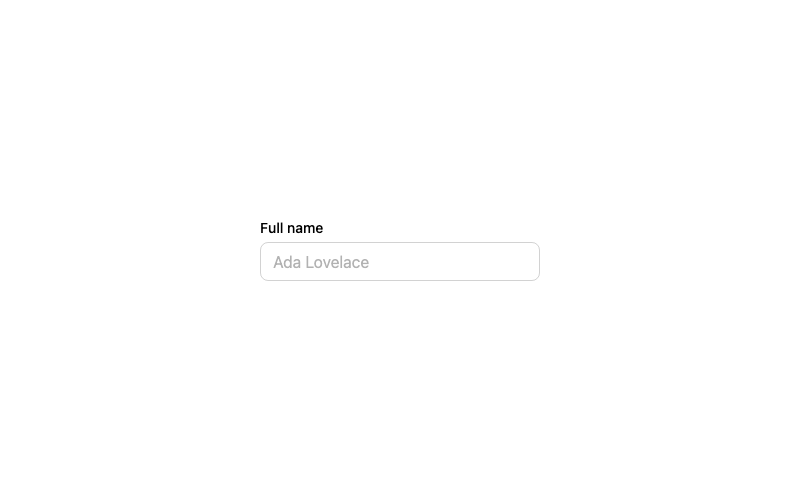
Default Input
A standard labeled text input with a focus ring.
htmlbeginner
2.9k874674314
 Featured
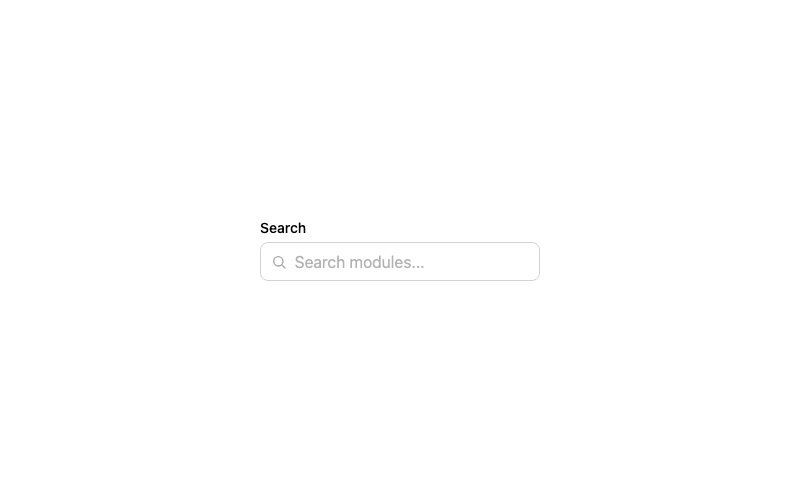
Icon Input
A search input with a leading magnifier icon.
htmlbeginner
1.3k802602242
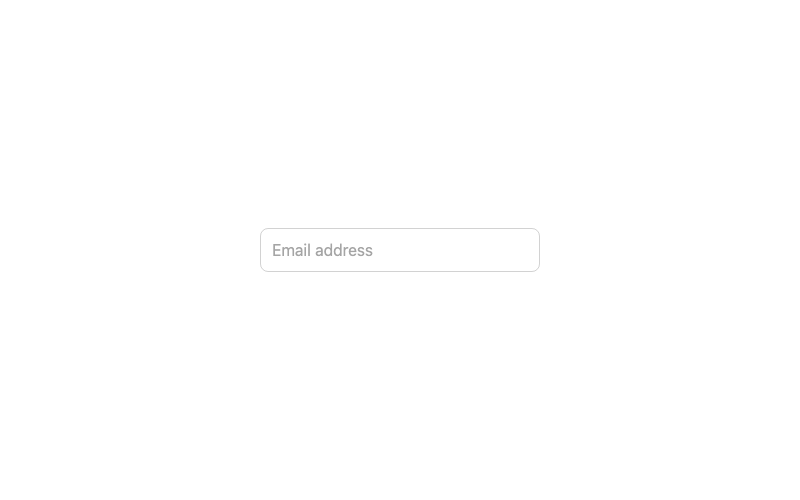
Floating Label Input
An input whose label floats above when focused or filled.
htmladvanced
3.2k1.0k246186
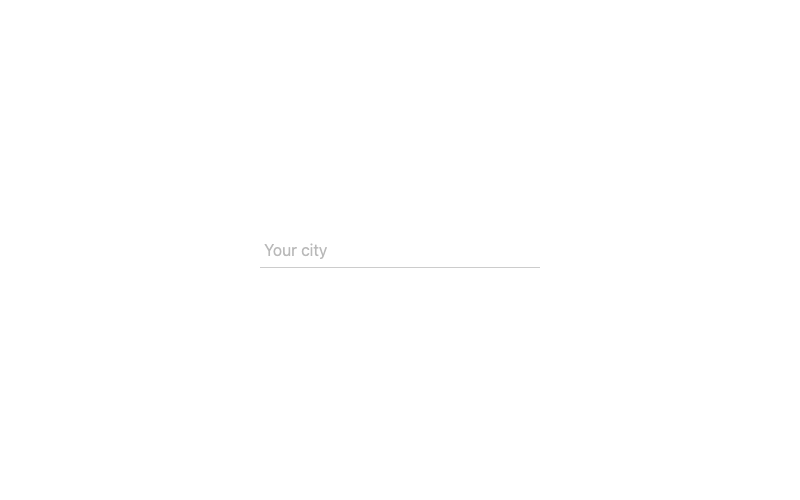
Underline Input
A borderless input with an animated underline.
htmlintermediate
2.2k62942969